
- Training
- Service
- Promotion
- Schedule
- Testing Center
- News
- Contact
5/6/2024


Learn to master VLOOKUP habits in Excel that are essential for error-free formula writing.
Download the Excel File
You can follow along using the same Excel workbook I use in the video. Download it here:
7 Essentials of VLOOKUP Pros.xlsx
If you've encountered errors while using VLOOKUP in Excel, you're in good company. It's a tough formula to master, so it's good to develop go-to procedures that will eliminate such errors in the future.
Mastering VLOOKUP can significantly boost your productivity and accuracy. That's why I want to share with you 7 essential habits that will help you write VLOOKUP formulas flawlessly and efficiently.
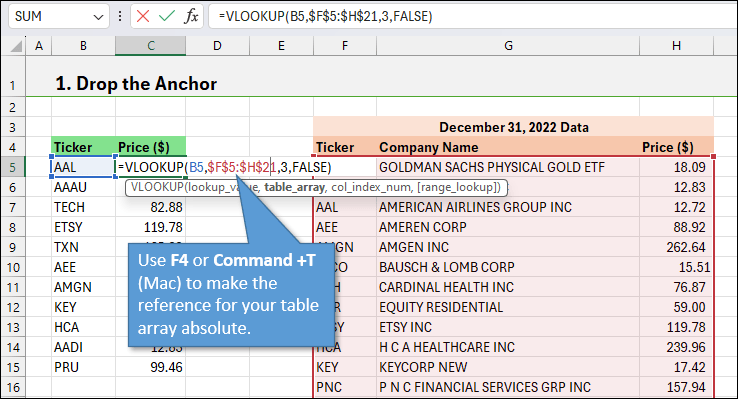
1. Always Use Absolute References for a Table Array
In other words, be sure to drop the anchor.
One common mistake when writing VLOOKUP formulas is forgetting to make the table array an absolute reference. This can lead to errors when copying the formula down.
To avoid this, use the shortcut F4 (or Command + T on Mac) after selecting the table array in your formula to make it an absolute reference.
2. Don't Forget the Range Lookup Argument
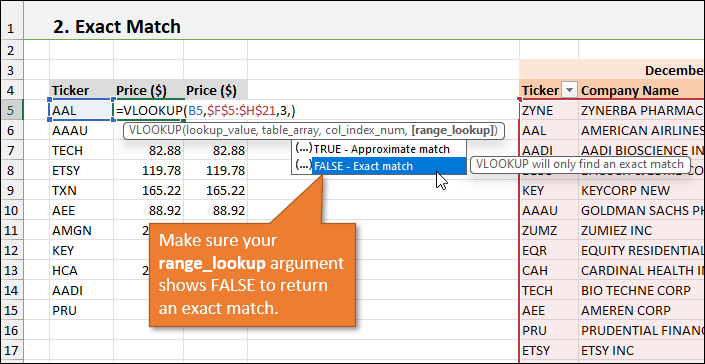
The range_lookup argument in VLOOKUP is optional, but specifying it ensures an exact match. Always include FALSE or 0 for an exact match to prevent errors. You can use the shortcut Down Arrow ↓ followed by Tab to quickly select FALSE.
3. Trim Extra Spaces for Accurate Matches
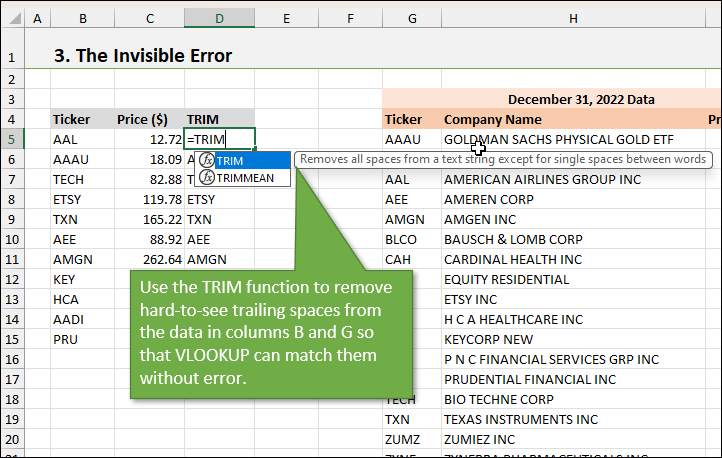
Invisible errors caused by trailing spaces can lead to mismatched values in VLOOKUP. Use the TRIM function to remove extra spaces from text strings before performing the lookup. This ensures accurate matches and prevents errors.
4. Start with Naked VLOOKUPs
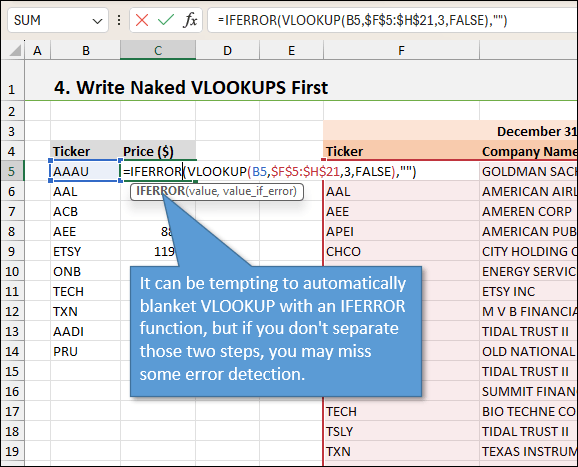
Before applying error handling techniques like IFERROR, evaluate your VLOOKUP formulas without them. This allows you to identify and fix errors in the lookup process before implementing error handling.
5. Understand When to Use VLOOKUP, INDEX MATCH, or XLOOKUP
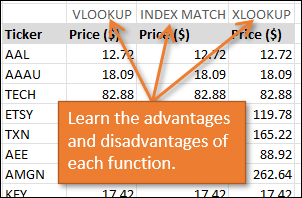
Knowing when to use each function is crucial for efficient data retrieval. While VLOOKUP is straightforward and quick to write, INDEX MATCH and XLOOKUP offer more flexibility and robustness, especially when dealing with changing data structures.
6. Use Shortcuts for Faster Formula Writing
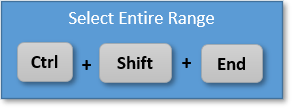
Speed up your formula writing process by utilizing shortcuts. For instance, use Ctrl + Shift + End to select the entire table array quickly. This reduces the need for manual selection and saves time.
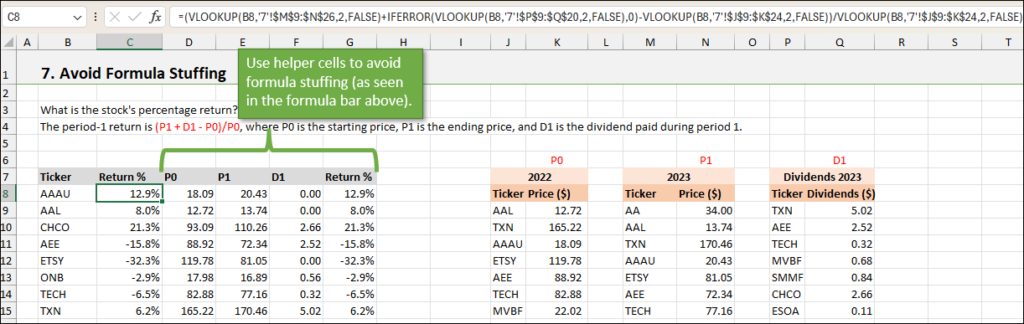
7. Avoid Formula Stuffing for Better Debugging
Instead of cramming multiple VLOOKUP formulas into one cell, separate them into individual cells or helper columns. This makes debugging easier and allows you to identify and fix errors more effectively.
Source: excelcampus.com

12/11/2025


